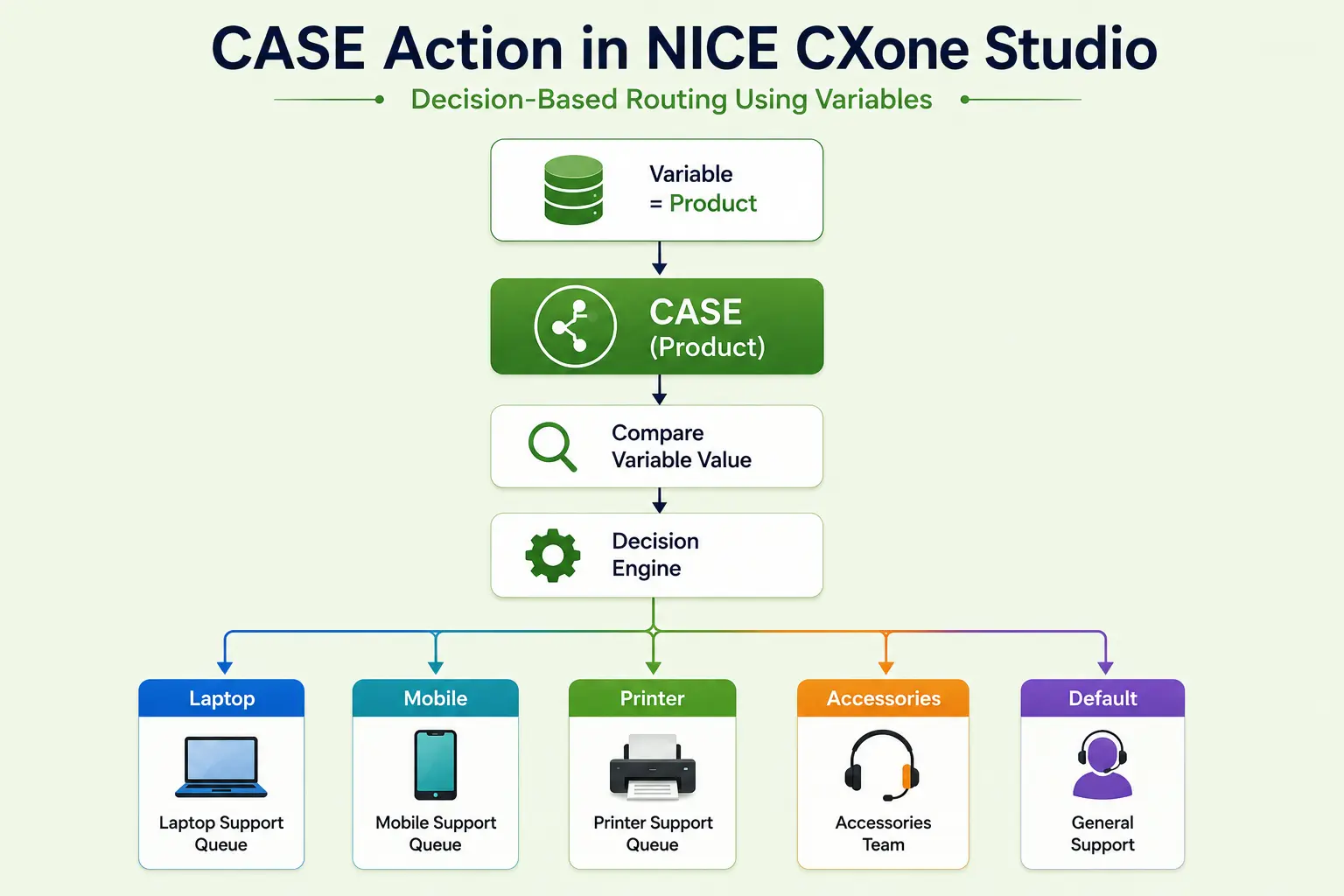
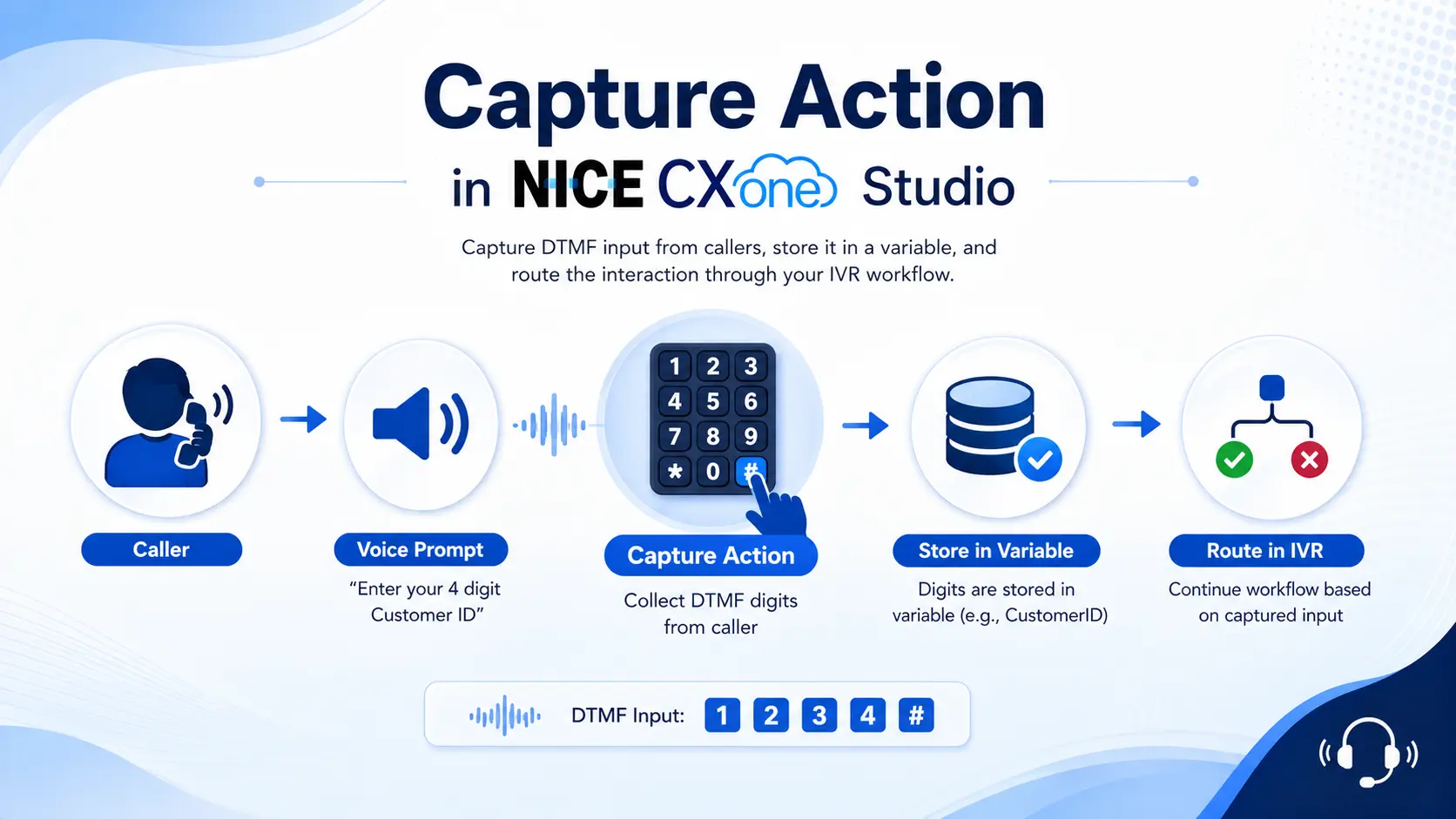
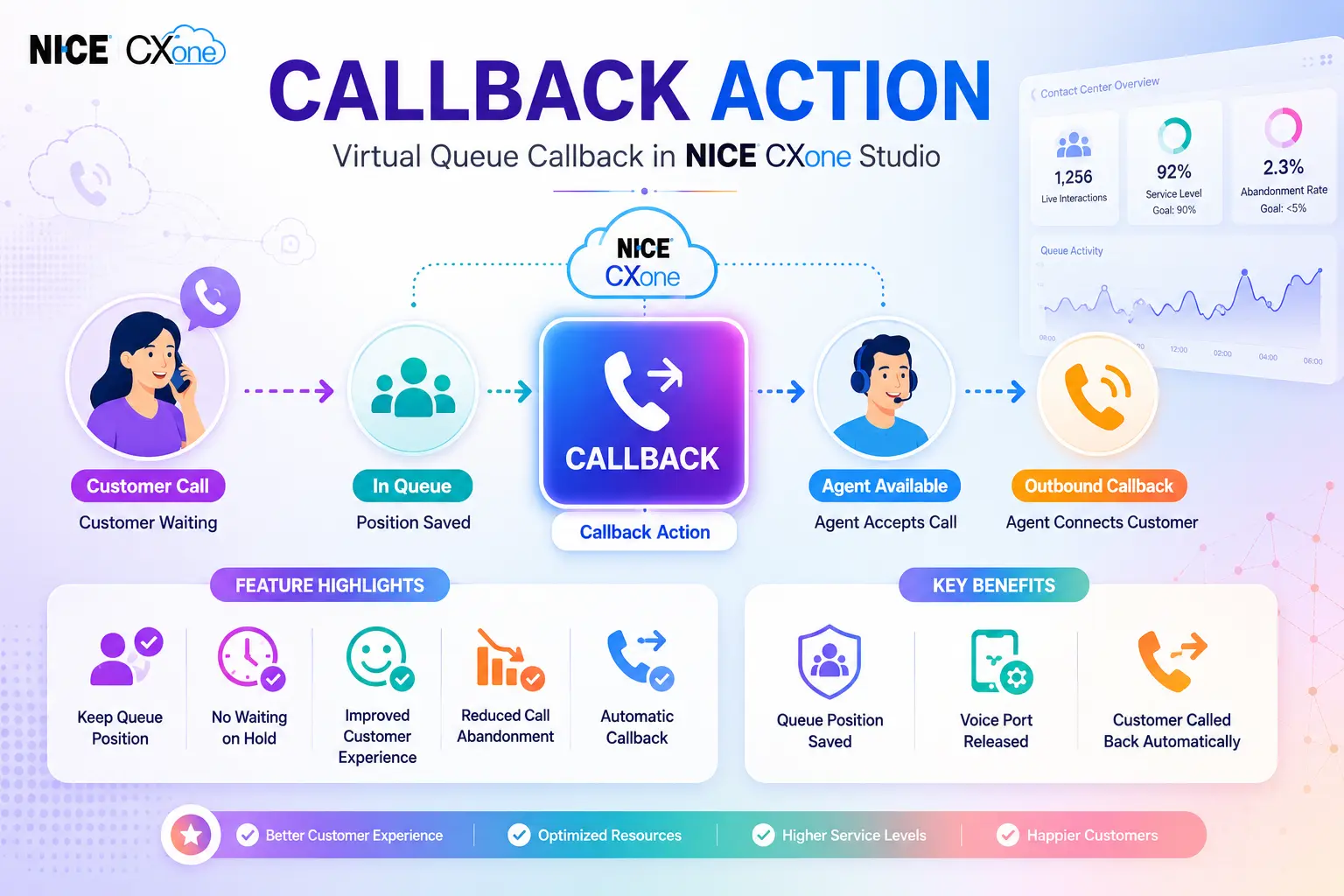
Assign Action in NICE CXone Studio – Complete Guide with Examples and Diagrams
 VoIP Trainers3 min read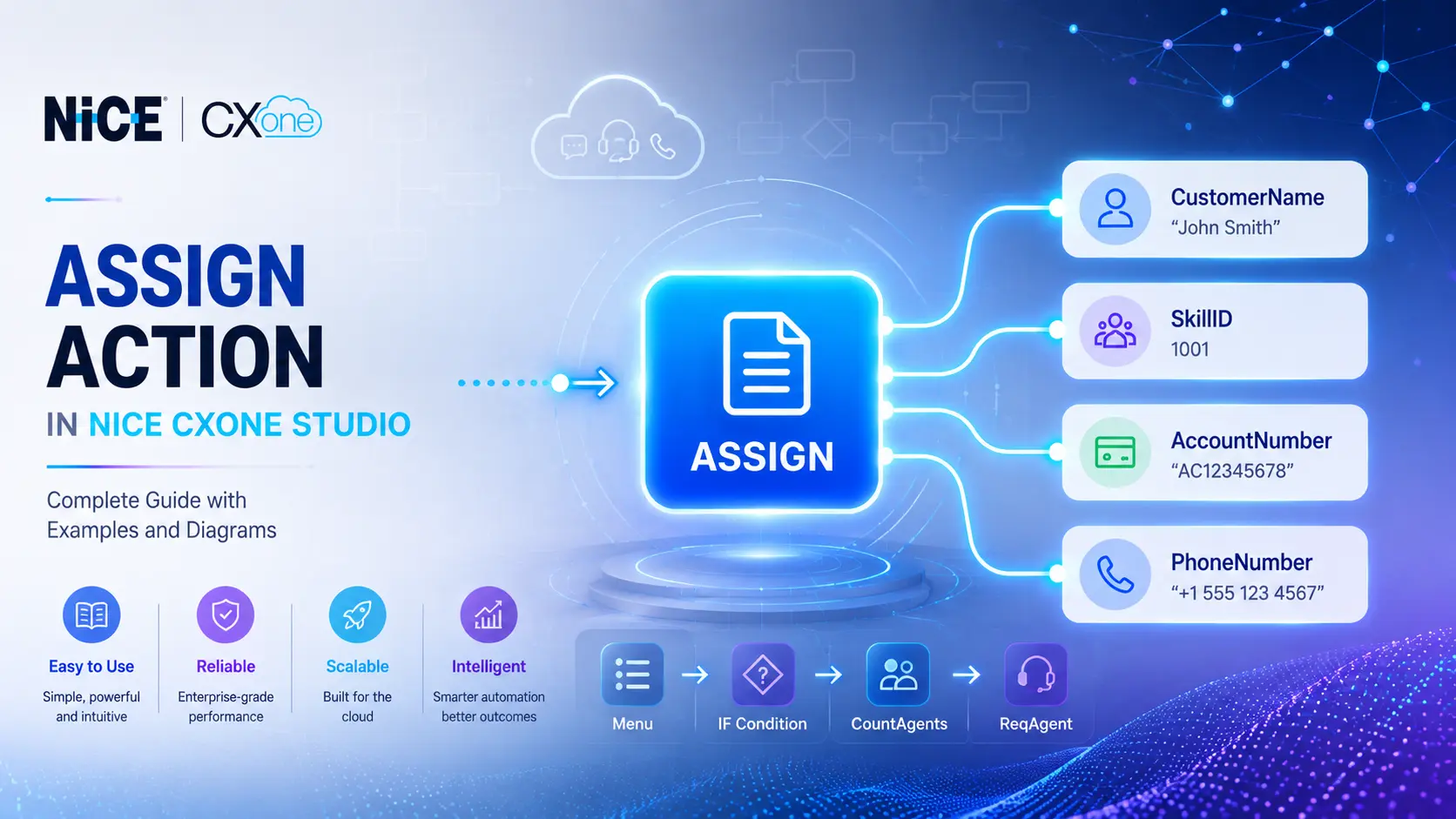
What is the Assign Action?
The Assign action in NICE CXone Studio is used to create a variable and store a value inside it.
Think of Assign as a container that holds information which can later be used by other actions in the script.
For example:
- Store a Skill ID
- Store a Customer Name
- Store an Account Number
- Store a Phone Number
- Store a Queue Name
- Store Dynamic Values
Without Assign, many Studio actions would not know what value to process.
Assign Action Icon
The Assign action appears as a standard Studio action block and is commonly used throughout IVR and routing scripts.
How Assign Works
Assign Architecture Diagram
Input Properties of Assign Action
1. Caption
The Caption field allows you to give the action a meaningful name.
Example
Sales Skill Assignment
Instead of:
Assign1
This makes scripts easier to understand.
2. Variable
This is the variable name that will hold the value.
Example
CustomerName
or
NewSkill
Diagram:
Variable │ ▼
CustomerName
3. Value
The actual data stored inside the variable.
Example
CustomerName = John
or
NewSkill = 1001
Visualization:
+–––––––––––+ | Variable | +–––––––––––+ | CustomerName = John | +–––––––––––+
4. Type Property
Assign supports three data types.
String
Stores text.
Example:
CustomerName = John
Type = String
Result:
John
Numeric
Stores numbers and performs calculations.
Example:
1+1
Type:
Numeric
Result:
2
Diagram:
1 + 1 │ ▼ Numeric │ ▼ 2
Datetime
Stores date and time values.
Example:
06/05/2026
Useful for:
- Call Logging
- Appointment Systems
Reporting
ScreenPop Property
The ScreenPop property controls whether the value appears on the agent desktop.
Example
CustomerName = John ScreenPop = True
Agent Screen: ———————–– Customer Information -———————— Name : John -————————
Workflow:
SaveToDB Property
This property stores the variable value in CXone reporting databases.
Example
OrderNumber = 12345 SaveToDB = True
Benefits:
- Historical Reports
- Contact History
- Custom Data Reports
- Analytics
Diagram: Assign Action │ ▼ SaveToDB=True │ ▼ CXone Database │ ▼ Reports
MaxStringSize Property
Controls maximum size of text stored.
Default:
2 KB
Example:
CustomerComments
If comments exceed the configured limit:
Overflow Branch
will execute.
Result Branches
Default Branch
Executed when everything works normally.
Assign │ ▼ Default
Overflow Branch
Executed when stored text exceeds maximum size. Large Data │ ▼ Assign │ ▼ Overflow
Real-Time Example 1: Store Customer Name
Scenario
Caller enters name through IVR.
Variable = CustomerName Value = John Type = String
Flow:
Caller │ ▼ Assign (CustomerName=John) │ ▼ Screen Pop │ ▼ Agent
Real-Time Example 2: Assign Skill ID
This is one of the most common uses of Assign.
IVR Menu
Press 1 for Sales Press 2 for Support Press 3 for Accounts
Sales Option
Assign:
NewSkill = 1001
Support Option
Assign:
NewSkill = 1002
Accounts Option
Assign: NewSkill = 1003
Architecture Diagram:
Complete NICE Example Explained
Example Script Logic
Sales
Assign: NewSkill = 1001
Count Agents
CountAgents
Returns:
TOTAL = 5
IF Condition
TOTAL = 0
If TRUE:
Leave Voicemail
If FALSE:
ReqAgent
Global Variables in Assign
You can create variables accessible across scripts.
Example:
Global:CustomerID
Diagram: Main Script │ ▼ Global Variable │ ▼ Sub Script │ ▼ Available Everywhere
Best Practices
Use meaningful variable names
CustomerName AccountNumber OrderID NewSkill
Avoid
Var1 Temp1 ABC
Enable ScreenPop only when agents need the information.
Enable SaveToDB only for reporting data.
Keep string sizes reasonable.
Use Assign before ReqAgent for skill-based routing.
Conclusion
The Assign Action is one of the most important and frequently used actions in NICE CXone Studio. It enables developers to create variables and store values that can be used throughout a script for routing, reporting, screen pops, and decision-making. Whether you need to store a customer name, assign a skill ID, save account information, or pass data between actions, Assign provides a simple and effective way to manage information within your contact center workflows.
By combining Assign with actions such as Menu, IF, CountAgents, and ReqAgent, you can build intelligent IVR applications that route customers efficiently and improve the overall customer experience. Features like ScreenPop and SaveToDB further enhance agent productivity and reporting capabilities by making important customer data readily available when needed.
Understanding how to use the Assign Action correctly is essential for creating scalable, dynamic, and professional NICE CXone Studio scripts. Mastering this action will help you build smarter contact center solutions that deliver faster service, better call routing, and improved operational efficiency NICE CX Customized Training - VoipTrainers.